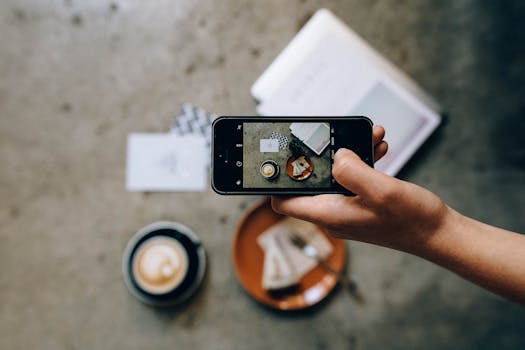
Okay, confession time. I used to stare at those impossibly perfect Instagram feeds – the ones with the vibrant sunsets, the crystal-clear turquoise waters, the effortlessly chic outfits against stunning backdrops – and feel a pang of inadequacy. My photos from the exact same locations, taken with a decent phone camera, just… didn't hit the same. They were flat, dull, or just plain messy. I’d think, "Do these influencers have personal photographers? Do they just get luckier with the light?"
The truth, my fellow travel enthusiasts, is far simpler, more accessible, and honestly, a little bit liberating. It's not about expensive DSLR cameras or professional photography courses. It's about a handful of incredibly powerful, often free, photo editing apps that fit right in your pocket. These are the unsung heroes behind those scroll-stopping visuals, the tools that transform a good photo into a great one. And today, I’m pulling back the curtain on the apps Instagram influencers probably don't want you to know they rely on so heavily.
Forget spending hours on a desktop. These mobile marvels let you edit on the go, whether you’re waiting for your next flight in Heathrow, sipping an espresso in a Roman piazza, or chilling on a beach in Bali. Ready to elevate your travel photography game? Let's dive in!
---
1. Lightroom Mobile: The Pro's Secret Weapon for Color & Consistency
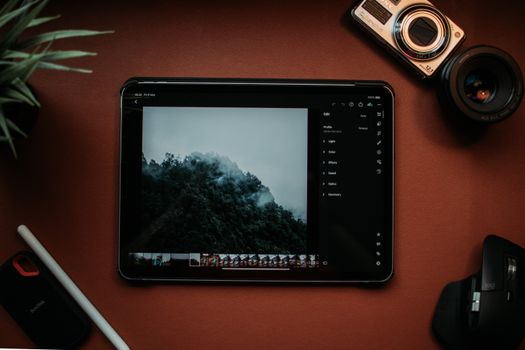
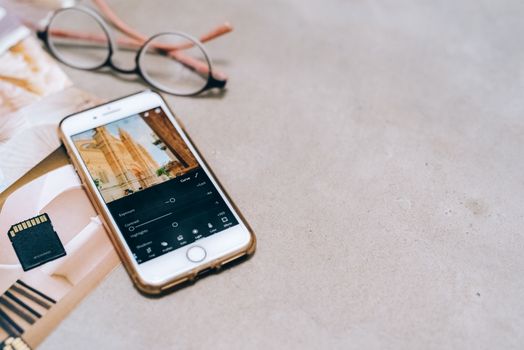
If there’s one app that every serious travel blogger and influencer has on their phone, it’s Adobe Lightroom Mobile. Don’t let the "Adobe" intimidate you; while it has powerful desktop counterparts, the mobile version is surprisingly user-friendly and incredibly robust. And here’s the best part: the core editing features are absolutely free.
Why it’s a game-changer:
Lightroom excels at color correction, exposure adjustments, and maintaining a consistent aesthetic across your entire feed. This consistency is key for influencers – it creates a recognizable brand and a visually pleasing flow.
How I use it:
I shoot almost everything in RAW format on my phone (if your phone supports it, please enable it – it captures so much more detail!). Then, I import them directly into Lightroom. My go-to moves are:
- Exposure & Highlights/Shadows: Bringing back details in blown-out skies (that Santorini sunset I almost lost!) or lifting shadows in a dimly lit market in Marrakech.
- Color Grading (HSL Sliders): This is where the magic happens. Want to make those blues in the Aegean Sea pop without oversaturating everything? Head to the HSL (Hue, Saturation, Luminance) sliders. I often desaturate greens slightly and boost blues and oranges to create that warm, inviting travel vibe.
- Dehaze: A lifesaver for foggy landscapes or hazy cityscapes. It adds clarity and contrast, making your photos look sharper.
- Presets: This is the real secret. Influencers often create or purchase custom presets (a set of saved edits) that they apply to all their photos. This ensures a cohesive look with just one tap. I've developed a few of my own over the years – one for sunny beach days, another for moody cityscapes, and a vibrant one for food photography. It saves so much time and ensures my feed always looks "me." You can even find tons of free presets online or purchase them from other creators.
Price:
Free for core editing features; premium subscription ($9.99/month) unlocks cloud storage, selective adjustments, and advanced healing. Worth it if you’re serious, but start with free!
---
2. Snapseed: The Free Powerhouse You Already Own (Probably)
Google’s Snapseed is arguably the most powerful free photo editing app out there, and it’s criminally underrated. If you haven't explored its capabilities, you're missing out on a treasure trove of professional-grade tools.
Why it’s a game-changer:
Snapseed shines with its selective adjustments and incredible healing tools. It allows for precise control over specific areas of your photo, making it perfect for those tricky "fix-it" moments.
How I use it:
I often use Snapseed after a basic color correction in Lightroom, or for quick edits when I don't want to open Lightroom.
- Selective Adjustments: Imagine you have a beautiful shot of a temple in Kyoto, but the sky is a bit dull, and the temple itself is a tad dark. With Snapseed's "Selective" tool, you can place a point on the sky and brighten only the sky, or place a point on the temple and boost its contrast without affecting the rest of the image. This level of control is usually found in desktop software!
- Healing Brush: This is my absolute favorite feature for travel. Ever get a perfect shot, only to realize there’s a stray piece of litter, an annoying power line, or a rogue tourist’s arm in the corner? The healing brush in Snapseed is surprisingly effective at making these unwanted elements vanish. I’ve used it to remove graffiti from ancient walls in Rome and even a distracting souvenir stand from a market scene in Thailand.
- Perspective: Crooked horizons are my nemesis. Snapseed’s perspective tool lets you correct skewed lines, rotate, and even adjust the tilt of your photo, which is brilliant for architecture shots or when you accidentally hold your phone a little wonky.
- Expand: This is a fun one! If you need a little more sky or foreground for a specific crop (like an Instagram Story), the "Expand" tool intelligently fills in the edges of your photo, creating more canvas. It's not magic, but it's surprisingly good for simple backgrounds.
Price:
Absolutely FREE. No catch. Just download and enjoy.
---
3. VSCO: Mastering the Mood & Aesthetic
VSCO (pronounced "vis-co") has been a staple in the mobile photography community for years, and for good reason. It’s less about intense technical adjustments and more about creating a specific mood and aesthetic with its signature film-like filters.
Why it’s a game-changer:
If you’re aiming for that effortlessly cool, slightly vintage, or artistic vibe, VSCO is your best friend. Influencers use it to give their photos a consistent, recognizable tone that feels less "edited" and more "artistic."
How I use it:
I often turn to VSCO when I want to give a set of photos a specific feel – perhaps a muted, earthy tone for my desert trip through Jordan, or a bright, airy look for a café hopping adventure in Paris.
- Presets (Filters): VSCO’s strength lies in its extensive library of presets, many of which mimic classic film stocks. My personal favorites are the A series (for clean, natural looks), the C series (for vibrant colors), and the M series (for a matte, faded film look). Experimentation is key here – find a few that resonate with your personal style and stick with them for consistency.
- Grain & Fade: These tools are fantastic for adding a subtle, nostalgic texture that emulates analog film. A touch of grain can elevate a simple portrait or landscape, making it feel more artistic and less digital.
- Recipes: Like Lightroom presets, VSCO allows you to save your favorite combinations of edits as "recipes." This is invaluable for maintaining your signature style across all your content.
Price:
Free for basic editing tools and a selection of presets; VSCO Membership ($29.99/year or $7.99/month) unlocks over 200 presets, advanced editing tools, and video editing.
---
4. TouchRetouch: Vanishing Unwanted Photobombers & Clutter
This app is a secret weapon that can salvage countless travel photos. You know the drill: you’ve found the perfect spot, composed your shot meticulously, and then BAM – a random tourist walks into the frame, a lamppost ruins the skyline, or a discarded coffee cup mars your pristine beach shot. Enter TouchRetouch.
Why it’s a game-changer:
While Snapseed has a decent healing brush, TouchRetouch is specifically designed for object removal and does it with astonishing precision. It’s like having a magic wand for your photos.
How I use it:
I keep this app close at hand, especially after visiting popular tourist spots.
- Object Removal: This is the star feature. Simply paint over the unwanted object (or person!), and the app intelligently fills in the background, making it disappear as if it was never there. I’ve used it to remove dozens of people from my Trevi Fountain shots in Rome, erase distracting signs from my photos of the Eiffel Tower, and even clean up stray rubbish from a beautiful beach in Thailand. It’s not always perfect for very complex backgrounds, but for most situations, it’s incredibly effective.
- Line Removal: Got unsightly power lines or telephone wires cutting across your otherwise perfect landscape? The line removal tool makes quick work of them.
- Spot Healing: For smaller blemishes or dust spots, this tool is fantastic.
Price:
Usually a one-time purchase of $1.99 - $2.99, depending on your app store. A small price for the immense value it provides.
---
5. Facetune/YouCam Perfect: Looking Your Best, Effortlessly
Okay, this is where it gets a little controversial, but let’s be real – influencers use these apps. And while I advocate for authenticity, sometimes, after a red-eye flight or a long day of exploring, a little digital touch-up can make you feel more confident about sharing your selfie. The key is subtlety.
Why it’s a game-changer:
These apps are designed to make you look refreshed, well-rested, and camera-ready, even when you're feeling anything but. They empower you to present your best self without resorting to heavy makeup or filters that distort reality.
How I use it (sparingly!):
I mostly use these for quick portrait touch-ups when I'm in front of the camera, not behind it. Think of it as digital makeup.
- Smooth Skin: A light touch of skin smoothing can make you look less tired and more radiant. I avoid going overboard, as that leads to an unnatural, "plastic" look. The goal is a healthy glow, not a Barbie doll complexion.
- Whiten Teeth/Brighten Eyes: A subtle boost to the whites of your eyes and teeth can make a huge difference, especially after one too many coffees on the road.
- Details: This tool can sharpen specific features, like your eyes or the texture of your hair, making them pop without affecting the rest of the image.
- Light Reshape: Very gently, I might use this to subtly fix a stray hair or straighten a collar. I steer clear of drastic changes that alter my features – that's where things get unrealistic.
Price:
Both offer free versions with basic features; premium subscriptions (Facetune: $6.99/month or $35.99/year; YouCam Perfect: $5.99/month or $29.99/year) unlock all tools and features. Start with the free versions to see if they fit your needs.
---
6. PicsArt: Unleashing Your Inner Artist with Creative Overlays
While the previous apps focus on enhancing your existing photos, PicsArt is for when you want to get creative. It’s a full-blown mobile photo editor with a vast array of tools for collages, stickers, text, and wild artistic effects.
Why it’s a game-changer:
If you’ve seen those Instagram Stories with cool text overlays, double exposures, or unique collage layouts, chances are PicsArt was involved. It's fantastic for making your travel content more dynamic and storytelling.
How I use it:
I use PicsArt when I want to create something truly unique, beyond a standard photo edit.
- Stickers & Text: Need to add a playful sticker to highlight a specific dish from a street food market in Vietnam? Or perhaps some elegant text describing your adventure hiking in Patagonia? PicsArt has a massive library.
- Collages: From simple grids to free-form arrangements, PicsArt makes creating visually appealing collages a breeze. I often use this for "day in the life" posts or to showcase multiple angles of a single destination, like the vibrant streets of Lisbon.
- Double Exposure: This is an advanced technique where you blend two photos together. Imagine a silhouette of yourself against a sunset, with a cityscape subtly blended into your silhouette. PicsArt makes this surprisingly easy and can create incredibly artistic results.
- Background Changer: Want to swap out a boring background for something more dramatic? PicsArt’s AI-powered background remover and changer can do it. Use with caution, though – it's easy to make it look fake if not done carefully!
- Drawing Tools: Feeling artistic? You can draw directly onto your photos, adding unique touches or annotations.
Price:
Free with in-app purchases and ads; PicsArt Gold subscription ($4.66/month or $55.99/year) removes ads and unlocks all premium features, filters, and content.
---
Practical Tips for Next-Level Travel Photos
Now that you have the tools, here are a few golden rules I live by:
- Shoot in RAW: As mentioned, if your phone allows it, always shoot in RAW. It captures more data, giving you much more flexibility in editing.
- Less is More: The goal is to enhance, not distort. Subtle edits often look more professional and authentic than heavily filtered, over-saturated images.
- Find Your Style: Experiment with different apps and presets until you discover a look that feels uniquely "you." This consistency will make your feed instantly recognizable.
- Batch Edit: If you have a series of photos from the same location or trip, try to edit them all at once or apply the same preset to maintain a cohesive vibe.
- Backup Originals: Always save your original, unedited photos. You never know when you might want to revisit an edit or try a completely new style.
- Learn the Basics: Understand basic photography principles like composition (rule of thirds!), lighting, and exposure. Even the best apps can't fix a fundamentally bad photo.
- Don't Be Afraid to Crop: Sometimes, simply cropping out distractions or reframing your subject can dramatically improve a photo.
---
The Secret's Out: Go Forth and Create!
There you have it – the arsenal of photo editing apps that empower us travel bloggers and influencers to turn everyday snapshots into captivating visual stories. It’s not about cheating or faking; it’s about enhancing the beauty that was already there, correcting imperfections, and expressing your unique vision.
These apps have completely transformed how I share my adventures. From making the turquoise waters of the Maldives truly sparkle, to fixing the relentless crowds around the Colosseum, to ensuring my selfies look decent after a 12-hour flight – they've been invaluable.
So, next time you're scrolling through an influencer's feed, remember that behind every stunning image is likely a savvy traveler with a phone full of these powerful tools. Now it's your turn to unleash your inner photo wizard! Download a few of these, play around, and get ready to transform your travel memories into Instagram gold.
What are your go-to travel photo editing apps? Share your secrets and tips in the comments below! And don't forget to tag @Tripsora and #TripsoraTravelPics on Instagram with your newly edited masterpieces – we can't wait to see them!
---